
Using My Account
Using My Account
What is My Account?
The My Account feature allows you to bookmark records that you may wish to view or reference in the future. You can also save searches to 'My Account' or share your search results.
The information below is designed to provide a step-by-step guide through use of both the Bookmark, Save Search, and Share Search functionalities of My Account.
The My Account feature is accessible through the person icon, located in the upper right-hand corner of the masthead.

What is My Account?
The My Account feature allows you to bookmark records that you may wish to view or reference in the future. You can also save searches to 'My Account' or share your search results.
The information below is designed to provide a step-by-step guide through use of both the Bookmark, Save Search, and Share Search functionalities of My Account.
The My Account feature is accessible through the person icon, located in the upper right-hand corner of the masthead.
Registration for My Account
First-time users can create an account by completing the free, online registration. Please note that accounts are managed by Adam Matthew Digital, not by The Charlotte and William Bloomberg Medford Public Library.
After clicking “Register,” you will receive an email with a link to activate your account. This should be done at your earliest convenience as this link will expire 7 days after you submit your registration. You can update any of these details from the Profile page in your account.

Registration for My Account
First-time users can create an account by completing the free, online registration. Please note that accounts are managed by Adam Matthew Digital, not by The Charlotte and William Bloomberg Medford Public Library.
After clicking “Register,” you will receive an email with a link to activate your account. This should be done at your earliest convenience as this link will expire 7 days after you submit your registration. You can update any of these details from the Profile page in your account.
Bookmarking
You can bookmark records directly from the Browse All page or a search results list by simply clicking the bookmark icon relating to each record.

Alternatively, the same icon allows you to bookmark the record, or bookmark specific files within the digitized item when viewing the record. The Bookmark icon will be available to you directly below the image viewer in such instances.
Any Bookmarked records and files will be listed when you log in to My Account, listed there as documents and items. Clicking on a bookmarked record will open the record in a new page. Use the sidebar filters to reduce your list of bookmarks to show either complete records or individual items that you’ve bookmarked.
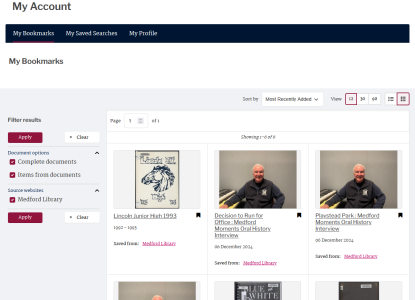
Within My Account, you can view your bookmarked records using a gallery-style format or for more information, select a list view.
Bookmarking
You can bookmark records directly from the Browse All page or a search results list by simply clicking the bookmark icon relating to each record.
Alternatively, the same icon allows you to bookmark the record, or bookmark specific files within the digitized item when viewing the record. The Bookmark icon will be available to you directly below the image viewer in such instances.
Any Bookmarked records and files will be listed when you log in to My Account, listed there as documents and items. Clicking on a bookmarked record will open the record in a new page. Use the sidebar filters to reduce your list of bookmarks to show either complete records or individual items that you’ve bookmarked.
Within My Account, you can view your bookmarked records using a gallery-style format or for more information, select a list view.
Save and Share Search
Use the My Account 'Save Search' feature to record your search parameters and easily rerun your query at a later date. You can find the Save Search feature in the upper right-hand corner of any current search criteria box. This appears above an Assets List after a search is applied.
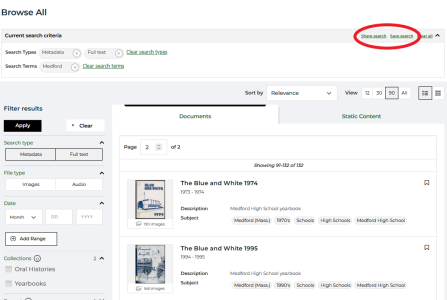
Saved Searches can then be accessed via My Account, providing a user has created an account (see details on how to do this above).
Similarly, My Account also provides a 'Share Search' function. At the top of the search results list, to the right of the search criteria box, a 'Share Search button' will be visible. Clicking on that button shows a Share Search pop-up, detailing a unique URL for that search list to enable collaborative working or research. For example, librarians could share a search with researchers, students could share a search with peers, or else teachers may find it useful to share list results with students when setting an essay on a set selection of materials.
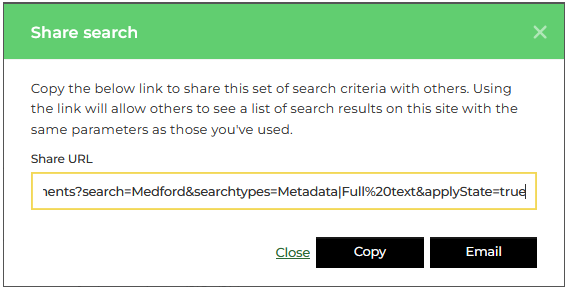
A pop-up offers users the option of copying a link to these results, or emailing them directly to anyone else. No account is required to use the Share Search feature.
For more information on My Accounts or any other Quartex feature, please contact info@quartexcollections.com.
Save and Share Search
Use the My Account 'Save Search' feature to record your search parameters and easily rerun your query at a later date. You can find the Save Search feature in the upper right-hand corner of any current search criteria box. This appears above an Assets List after a search is applied.
Saved Searches can then be accessed via My Account, providing a user has created an account (see details on how to do this above).
Similarly, My Account also provides a 'Share Search' function. At the top of the search results list, to the right of the search criteria box, a 'Share Search button' will be visible. Clicking on that button shows a Share Search pop-up, detailing a unique URL for that search list to enable collaborative working or research. For example, librarians could share a search with researchers, students could share a search with peers, or else teachers may find it useful to share list results with students when setting an essay on a set selection of materials.
A pop-up offers users the option of copying a link to these results, or emailing them directly to anyone else. No account is required to use the Share Search feature.
For more information on My Accounts or any other Quartex feature, please contact info@quartexcollections.com.